I’m really sorry, I gave up learning java script a while ago. I have node.js installed, and have the script, but how to I run the script pointed at the copy of my tropy project file? I’m sorry, still struggling. Can you help?
Chris Brockman
I’m really sorry, I gave up learning java script a while ago. I have node.js installed, and have the script, but how to I run the script pointed at the copy of my tropy project file? I’m sorry, still struggling. Can you help?
Chris Brockman
Sure, no problem! The idea is to run the script from the command line. To make it easier, I’d save the script in a ‘.js’ file next to your project. For example ‘fix_paths.js’, but you can pick any name you like.
Next, you need to open a terminal in the same folder. On Windows there are several terminal applications. The best and preferred one nowadays is probably Windows Terminal. Furthermore, for this to work, Node.js must be available in your PATH. The default Node.js installer should have taken care of that, but you can check to make sure if the following command works in your terminal:
$ node -v
This should print the version of Node.js you installed (22, 23, or 24).
If this works, make a backup copy of your project.tpy file just in case, and run our script like this:
$ node "fix_paths.js" "Your Project.tropy/project.tpy"
But you need to adjust the filenames accordingly. If it works, this should print all the paths as explained above. If it suggests any fixes, you can run the script again but add --commit at the end to update the paths in the database.
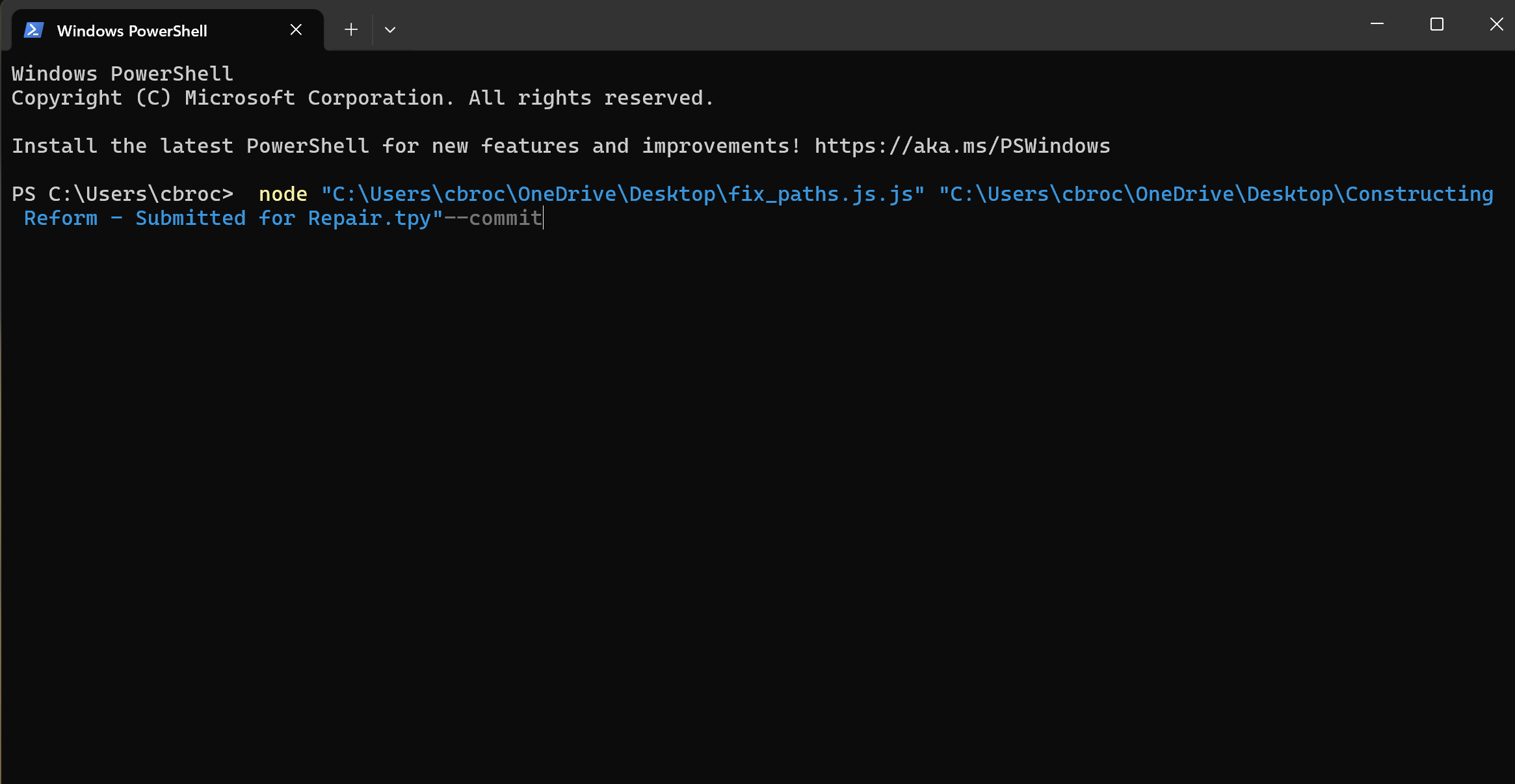
I feel like I am really close, but I am still having problems. I used your message your create the command:
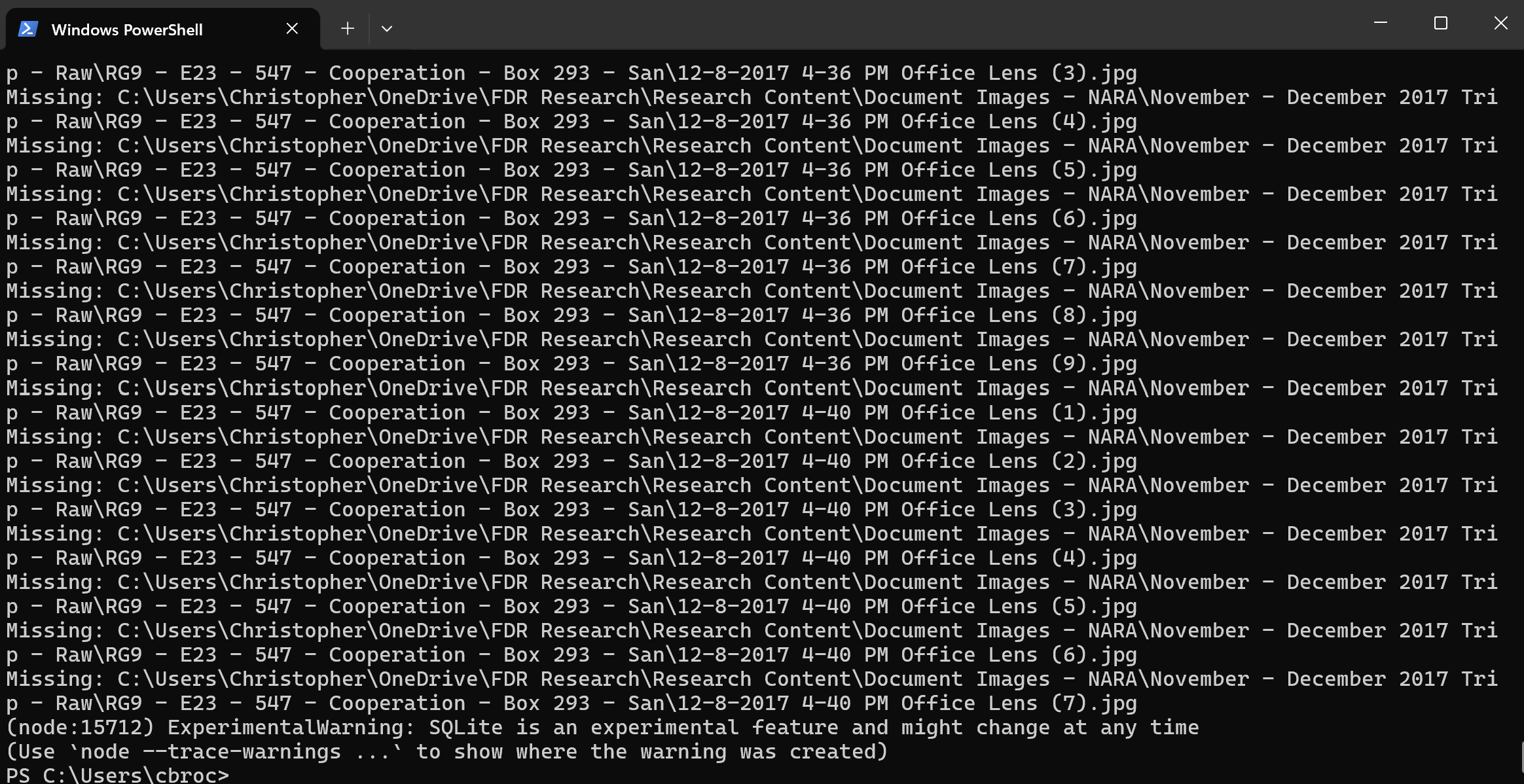
But when I run the command I get this, without any updates to the file paths in Tropy:
What am I doing wrong?
You may need to add a space before the --commit but it’s probably also fine the way it’s written above.
Regardless of whether or not you use the --commit flag the output should indicate whether or not any of the paths can be fixed by flipping the plus signs. The script also prints out files which are missing (and their alternate does not exist). After you run the script once with the --commit flag, the script should later not find any files anymore that can be fixed (because they are not missing anymore) and only print those that can’t be fixed. In your screenshot above only missing files are reported – this could be because there are some other changes necessary which we are not aware of yet, or maybe all the files with the plus signs were already fixed in a previous attempt.
In any case, there still seem to be a lot of files missing, so I guess there are probably still other changes to be made. You need to carefully look at those, for example, just taking a couple of the files printed in the screenshot above: the paths there are the paths where Tropy thinks a file should be, but can’t access it there. So you need to confirm whether or not that file actually exists. If it does exist, please print the whole path because there would have to be some difference to the one stored in the project (the script at the moment can only flip the plus signs in the file name, so any other difference would not be accounted for yet).
To be sure, the script (when run without the --commit flag) prints ‘Update:’ and the old and new paths for file paths that can be fixed. It prints ‘Missing:’ for paths that are missing and that cannot be fixed (because no alternate file with flipped plus-signs/spaces exists).
I am so sorry it has taken so long for me to respond - I had to dedicate my time to my job and really wanted to try to figure this out on my own. I have reviewed all of the notes here and still can’t make this work. I do, however, need to come to a solution - Tropy contains each scrap of research I have done for my book project. Is there any way I could jump on a call with you or someone else with Tropy to figure this out? I am more than willing to work around your schedule, as I believe we are in different time zones. I would also be willing to record my attempts at repair if that will help as well.
In the screenshot you posted the missing paths are still reported in the home directory Christopher so I think you probably ran the script on the original version of your project and not the one where we replaced the user name with cbroc. Can you try running it on that version instead?
Yikes, how could I make such a dumb mistake. I looked at all the versions I downloaded, including the one that I renamed “Constructing Reform-Submitted for Repair” and it is indeed “Christopher” instead of “cbroc” within the code. The link, of course, has expired. Do you have the ability to reopen the link or create a new link? I’m very, very sorry to ask for this again.
Hm, this is confusing: I downloaded the file, but the paths in this file all have cbroc as the username already. In particular all the paths in your screenshot above are there, but using cbroc. Please try running the script against this version of the project file.
This worked! I have no idea what I did differently, but all the photos consolidated and I am back to normal. Thank you so much for all your help with this! I will let you know if anything else comes up.
Best,
Chris Brockman