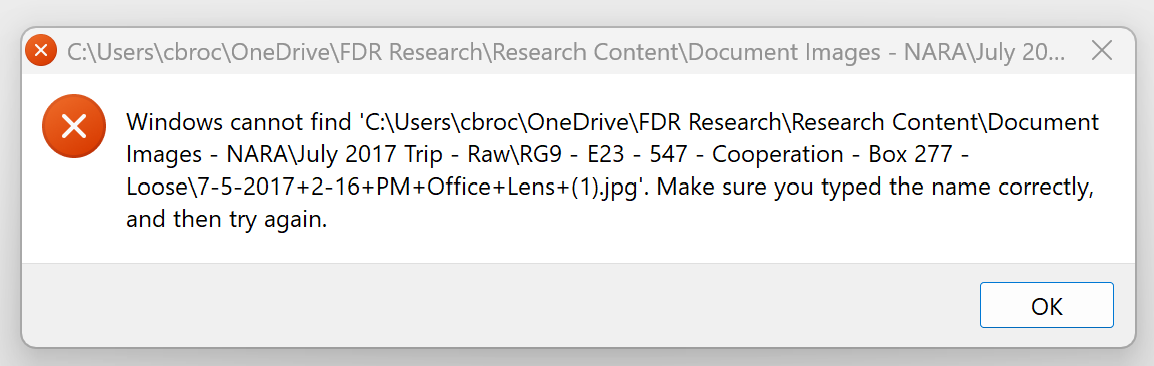
I recently updated my machine after using Tropy on my 15 year old machine - it was time. However, Windows called my user profile something different, which seems to be throwing the file path for Tropy off. I noticed this post that @inukshuk helped someone change the file path:
Sure! I assume this is an advanced project, i.e. just the .tpy file and using absolute paths to link to your photos?
If only the path to your user profile changed this should be really easy to fix by picking any one photo and consolidating it, which will prompt you to pick out the file at its current location. After doing that, Tropy should be able to consolidate all other photos automatically.
If this doesn’t work, we can just fix the paths in the database file. For this you’d have to share the .tpy file with us and tell us the new path to your user profile.
I apologize for the delay in response, the forum notification went to spam.
I attempted the consolidation strategy you suggested, but it only worked for the one file that I chose. Thanks so much for the offer to update the file paths for me. What would be the best way to share the file with you?
Thanks so much for helping with this! Sorry about the delayed response, I was away next week.
If you could alter the third value for each entry in the database so that it reads “cbroc” in between “Users” and “OneDrive” I would really appreciate it! Essentially it would be replacing “Christopher” (User File Folder name under windows 10) with “cbrock” (User File Folder created when I signed in on my new Windows 11 PC) Does that make sense? All file paths, I believe, would look like this:
You can download the updated file here for the next three days. I replaced the username ‘cbroc’, but you also mentioned cbrock above so I wasn’t sure which one to pick. Let me know if you need the other one!
Thanks so much for doing this. I do believe it is “cbroc” but it is still not working. Here is one of the full file paths. I don’t see any difference in the file path now, do you? What else can I try? When I choose consolidate photo it works fine, but only for that photo.
If the path is correct but Tropy still can’t open the file, it’s most likely due to either access permissions, but in your case it’s probably because of OneDrive. There’s a OneDrive setting that keeps files offline and only downloads them on demand. Tropy accesses the files directly from the file system and apparently does not trigger OneDrive’s automatic fetching of files. In that case Tropy can’t load the file and OneDrive also doesn’t download it. You can check the OneDrive settings to see if the files are fetched on deman only. Alternatively, you can also test this with files where you first make sure that they are actually synced to your local disk.
The photos are indeed synced to my disk - I have selected “Always keep on this Device” and thus the photos are accessible. What do I try now?
When I was using this heavily to write my dissertation I did have stability problems due to the size of the project - Over 10,000 items across 22,000 images. Could that be a factor?
With the size of this project it would be extremely challenging to select the file path for each one.
OK if the files are there then it can only be a difference in the path or an issue with file permissions.
Let’s first double check the path again. To do this, pick any of the photos in Tropy which appear to be missing. Copy the path of that photo (i.e., the path where Tropy expects the file to be). You can see the path by selecting the photo and hovering over the file name in the metadata panel (it should display the full path). Make a note of the path and, if it looks good, you can right-click the photo and select ‘Show original file’ – if the path is correct then this should open the photo in Windows Explorer (showing the containing folder with the photo selected). Similarly you could try ‘Open in external viewer’ which should open the photo in your default image viewer. If these tests work it means that the photo’s are indeed where Tropy expects them to be. In this case we most likely have a permissions issue. You could try checking the Tropy log file if there are any entries there about denied file access.
Conversely, if the tests above don’t work, it means there has to be something wrong with the path. Please copy the whole path from above and also find the corresponding file in Explorer, also copying out its path, and post both paths here as is so we can compare them.
However, when I find the path I can’t see the difference:
‘C:\Users\cbroc\OneDrive\FDR Research\Research Content\Document Images - NARA\July 2017 Trip - Raw\RG9 - E23 - 547 - Cooperation - Box 277 - Loose\7-5-2017 2-16 PM Office Lens (1).jpg’
Are you able to spot a difference? The only thing I notice is the plus signs in the file name, but if I consolidate the photo the pluses remain. I am stumped.
Thats just it - I don’t recall putting them there. And when I consolidate one image, it leaves them there. Is there any way to globally replace a plus sign with a space in the Tropy database file?
OK, after a quick web search it looks like there a common issues with OneDrive substituting characters in file names, especially plus-sings and spaces. This seems partly related to its handling of long file names and/or invalid characters… in any case, changing file names like this is pretty wild.
I looked in your original database file above and it turns out the situation is very inconsistent with 9k file names with spaces and 12k with plus-signs:
Can you check the files on your disk to see if spaces are used consistently there? Maybe you could do this by searching recursively over the FDR Reasearch folder for the patterns ‘Office Lens’ and ‘Office+Lens’ like I did above.
If you have spaces consistently we could try to globally replace the plus-signs in your project (at the risk of breaking some paths that legitimately have a plus-sign in them).
“Pretty Wild” is certainly the best way to describe this. Use of Tropy was pretty revolutionary when I was doing my archival work, and I found a screenshot from way back that showed the files in Windows - they did have plus signs in the file name. They, however, don’t now and I was not the
I did a search and it gets weirder, if thats possible. Every one of my photographs comes up when I search for “Office+Lens,” even when it doesn’t appear in the file name. So it seems that the plus sign is somewhere in the properties of the image, just not in the file name. I think you are absolutely right in that the plus sign is the problem.
I narrowed it down to a particular image where the plus signs disappear, and have included a screenshot.
You are right, the image sets without plus signs show up immediately. Is there a script that can be run within the database to replace the plus signs with spaces?
Thanks so much for looking into this.
Chris Brockman
I suspect that searching for “Office+Lens” could also depend on the search query syntax and be turned into something like files that match both “Office” and “Lens”.
Unfortunately the screenshot above doesn’t work, but in general, yes, I think the best way forward is a script to consolidate the file names. Do you have node.js installed? In that case I can prepare a quick script for you that does this.
Thats a good point. I can install node.js to run the script. Question though - will I be altering the file names themselves or the file path in Tropy? I’m a bit nervous altering the file names themselves. Can you advise?
Thanks so much for looking into this.
Chris Brockman
I’ve not tested this extensively, so please be cautious. Before you start, make sure the project is closed and make a backup copy of the project.tpy file in case something goes wrong!
The script is intended to work like this: you need to pass it the path to the project file and optionally the --commit flag. If you don’t use the --commit flag the script should open the project file in read-only mode and not make any changes (just print to the screen). With the --commit flag it should update the paths accordingly.
The script will go through all the photo paths in the projects. For each path, check if the file exists. If not, it will check if the alternate file exists (i.e., flipping plus signs and spaces in the name). If the alternate file exists it will print out the path that needs to change. If that file also doesn’t exist, the script will print the missing path.
So if you run this script first without the --commit flag it should give you a good summary of all paths that are missing and those that can be fixed by flipping the plus signs.
I’m having a lot of trouble accessing the script. I was away for a time, and public wifi wouldn’t let me verify my Gitlab account. I have verified my Gitlab account, but the link appears to be missing. Did the link have a expiration attached to it? Could you send it again? I am very sorry about this.
My apologies, there was a typo in the link. I’ve fixed it above, so I hope it should work now. I set it to public, so you should be able to access it without an account.
To be sure, I’ll also post the script below:
#!/usr/bin/env node

import { argv, exit } from 'node:process'
import { parseArgs } from 'node:util'
import { resolve, dirname, join, basename } from 'node:path'
import { existsSync } from 'node:fs'
import { DatabaseSync } from 'node:sqlite'

const {
  values: { commit },
  positionals
} = parseArgs({
  options: {
    commit: { type: 'boolean', short: 'c', default: false },
  },
  allowPositionals: true,
})

if (positionals.length !== 1) {
  console.error('Usage: node fix_paths.js <database.sqlite> [--commit|-c]')
  exit(1)
}

const dbPath = resolve(positionals[0])

function flip(filename) {
  if (filename.includes('+')) {
    return filename.replace(/\+/g, ' ')
  } else {
    return filename.replace(/ /g, '+')
  }
}

try {
  const db = new DatabaseSync(dbPath, {
    readOnly: !commit
  })

  const getBase = db.prepare('SELECT base FROM project')
  const getPaths = db.prepare('SELECT path FROM photos ORDER BY path')
  const updatePath = db.prepare('UPDATE photos SET path = ? WHERE path = ?')

  const { base } = getBase.get()
  const baseDir = base === 'project' ? dirname(dbPath) : base

  const rows = getPaths.all()

  console.log(`Checking ${rows.length} files...`)
  console.log(`Using base path ${baseDir}`)

  for (const row of rows) {
    const path = resolve(baseDir, row.path)

    if (existsSync(path)) {
      continue
    }

    const altPathRel = join(dirname(row.path), flip(basename(row.path)))
    const altPath = resolve(baseDir, altPathRel)

    if (existsSync(altPath)) {
      console.log(`Update: ${row.path} >> ${altPathRel}`)
      if (commit) {
        updatePath.run(altPathRel, row.path)
      }
    } else {
      console.log(`Missing: ${row.path}`)
    }
  }

  db.close()
} catch (err) {
  console.error('Error:', err)
  exit(1)
}