Dear Support Team,
I would like to request assistance regarding an issue we have been experiencing while using Tropy to organize a digital archive of documents in our project.
Currently, we work on two different computers. To ensure the safety of our data, whenever we finish a work session we save the Tropy project to Google Drive so that we have a backup copy. When necessary, we download this file on either computer to continue working on the project.
For approximately one year, this workflow worked without any problems. However, after some recent updates to the software, we started experiencing difficulties when opening the project files. Whenever we download the file and attempt to open it, the system asks to perform an encoding/reindexing process. During this process, errors begin to appear and the project cannot be opened correctly.
We would like to understand what might be causing this problem, as Tropy has been an extremely important tool for organizing our archive. At this point, we already have a significant amount of documents cataloged in the project, and we are concerned about the possibility of losing this information.
Therefore, we would appreciate your guidance on how to resolve this encoding issue and what would be the safest way to work with the same project on two different computers without risking data corruption.
Thank you in advance for your attention, and we look forward to your guidance.
Best regards.
Does this happen every time you open the project? Or only the first time after you download it? Or does it happen only sporadically?
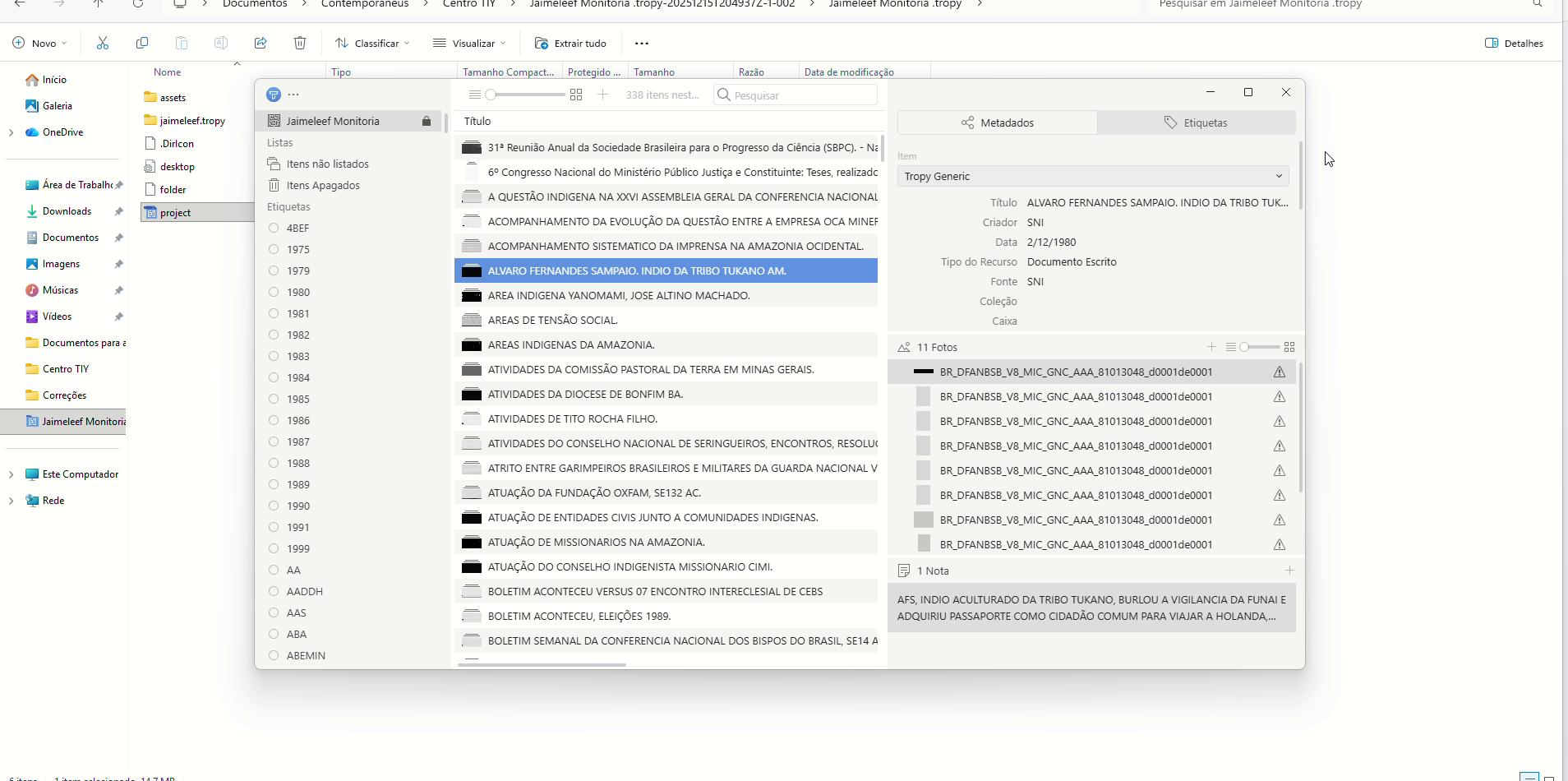
Could you make a screenshot of the prompt about encoding/re-indexing? Or any of the errors that start appearing. And ideally, save the log file after it happens, because it might offer more clues. If it happens consistently, I would assume that the project database file has been corrupted. This can often happen due to sync conflicts in Google Drive in combination with having the project open in Tropy (though this should never happen in your workflow). In any case, if you could provide screenshots or logs of the error we should be able to say more. Otherwise you can also share the project.tpy file with us and we can take a look.
Look, the project opens normally and it even encodes some images, but it encodes some and others not. That is our question, because before we used to save and open the file in the same way and there were no encoding errors.
Now we run the process of encoding the images using Tropy itself, and it says that the images were encoded, but they still remain without encoding.
I use the mechanism that Tropy provides to encode the images by document or to encode all the files that exist inside the program, and even so some images are not encoded.
Another point we would like to mention regarding our questions: we are trying to open Tropy on a Mac, but it keeps showing an error. The image attached shows the error message that appears when we try to install it.
The error message is also written below. :
Error: Failed to get ‘logs’ path
at file:///Applications/Tropy.app/Contents/Resources/app.asar/lib/main/index.js:24684:30
at ModuleJob.run (node:internal/modules/esm/module_job:343:25)
at async onImport.tracePromise.proto (node:internal/modules/esm/loader:665:26)
at async node:electron/js2c/browser_init:2:135662
at async asyncRunEntryPointWithESMLoader (node:internal/modules/run_main:132:5)
The project file itself looks fine. In the screenshot it looks like the project is opened in read-only mode (the lock symbol next to the project name). This would typically happen if Tropy cannot write to the project file. Do you have write access to the project folder? Have all the files in the asset folder been downloaded too and can they be opened? It looks like an issue with file permissions to me. If you can post the log file also, it might have more information.
Regarding the macOS error: can you check if ~/Library/Logs exists? This is a system folder that should exist, if it was removed it can cause Tropy to fail with this error.
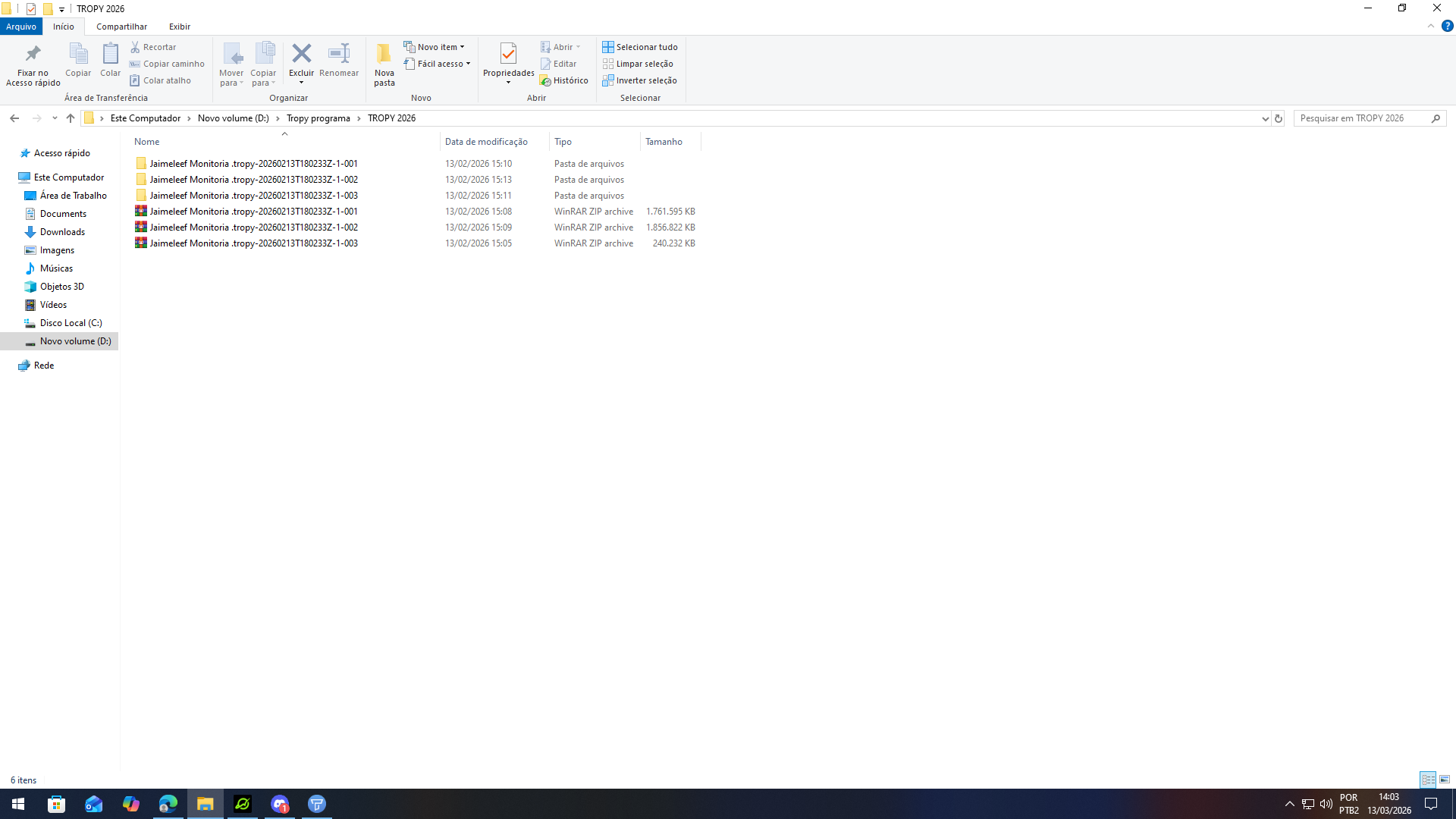
Previously, they came in a single folder, but now they come in three separate folders. In the photos are the files you requested, however they are in different folders from where the main project is located.
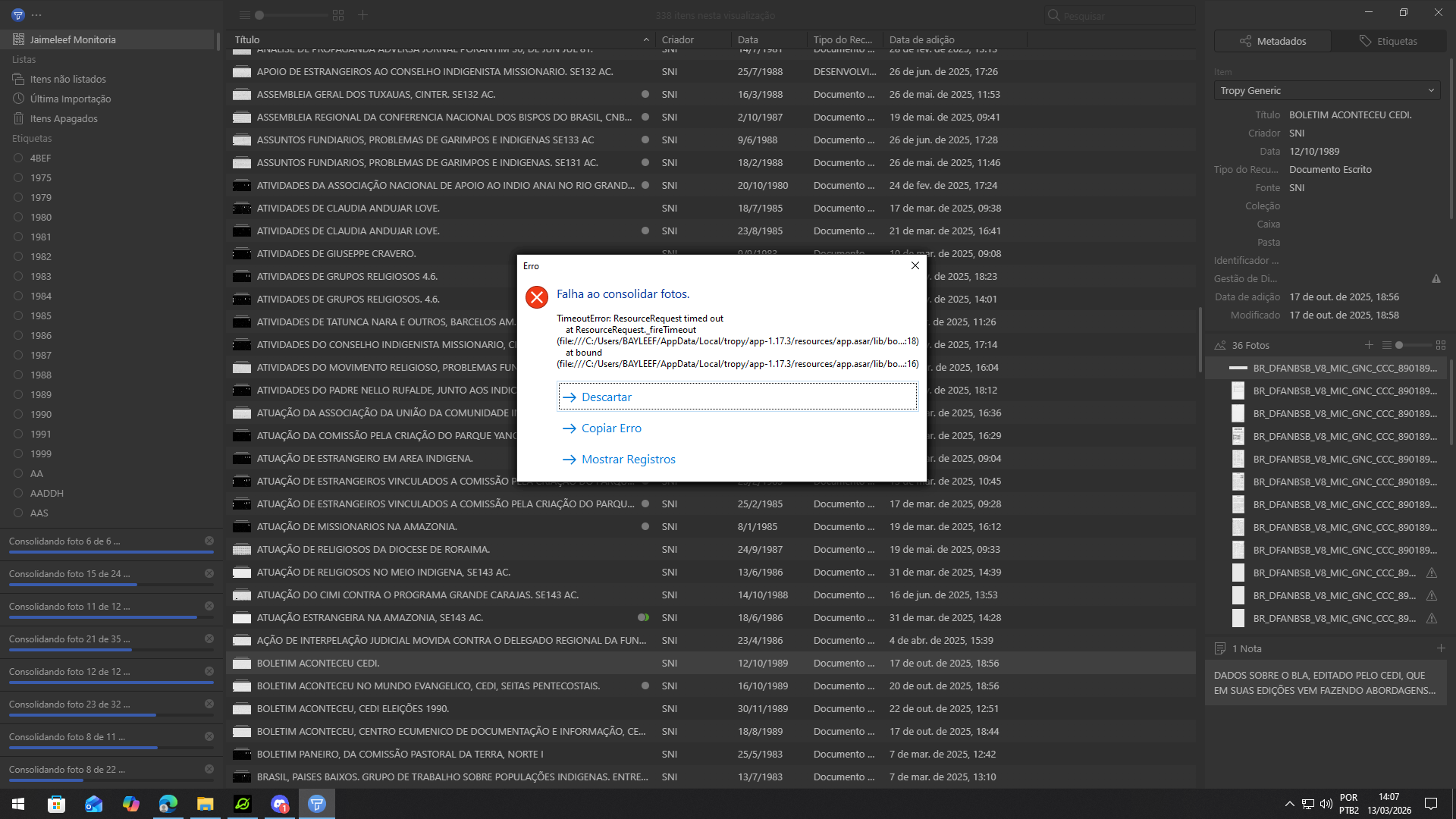
They have all the files, but when I try to consolidate them, this consolidation error always appears, as if it could not find the page or the file.
What is the best way to save files to avoid errors? Can you give us a step-by-step guide? Because the only way we have to send our project is through Google Drive.
https://drive.google.com/drive/folders/1rxvG61LTBR9BF9DaU5fIslbfzncNwRCy?usp=drive_link
If you want to access the Drive file with the folders, we saved the file this way and then downloaded it.
It looks like Tropy is not locating the photos to process them, but they are in the folder. So I can’t understand the error that is happening. This is a project we worked on for a whole year and we wouldn’t want to lose it.
I suspect that the files with the added timestamps are the result of sync conflicts. In any case, I would recommend to
- close all projects in Tropy
- then download the latest version of the project
- make sure it’s fully downloaded: for testing I’d move it out of a location controlled by Google Drive, look at it in Windows Explorer to ensure it’s all there (the
project.tpy file and the assets folder with your images)
- when you’re sure it’s all there, open this project by double-clicking on the
project.tpy file (this way you can be sure that Tropy opens this version of the project)
- make sure the project works
- if there are any errors in the previous step, select
Help → Show log files from the menu and make a copy of the tropy.log file so you can post it here
- if there are no errors and the project is the most recent version, close it, remove the timestamp from the name, and move it back to your Google Drive
- then double-click on the project.tpy file again to open it in Tropy and just close it again (this way, the next time you open Tropy it will open the project at this location)
- before opening the project on a different device always make sure it’s fully synced and that it is not open in Tropy on another device already.