I am using a standard project, or .tropy file. So from what I understand, each file is copied upon upload. The worry about absolute paths no longer matters, right? I had no issue when I started using Tropy this past January; all .jpegs and .pdfs uploaded perfectly.
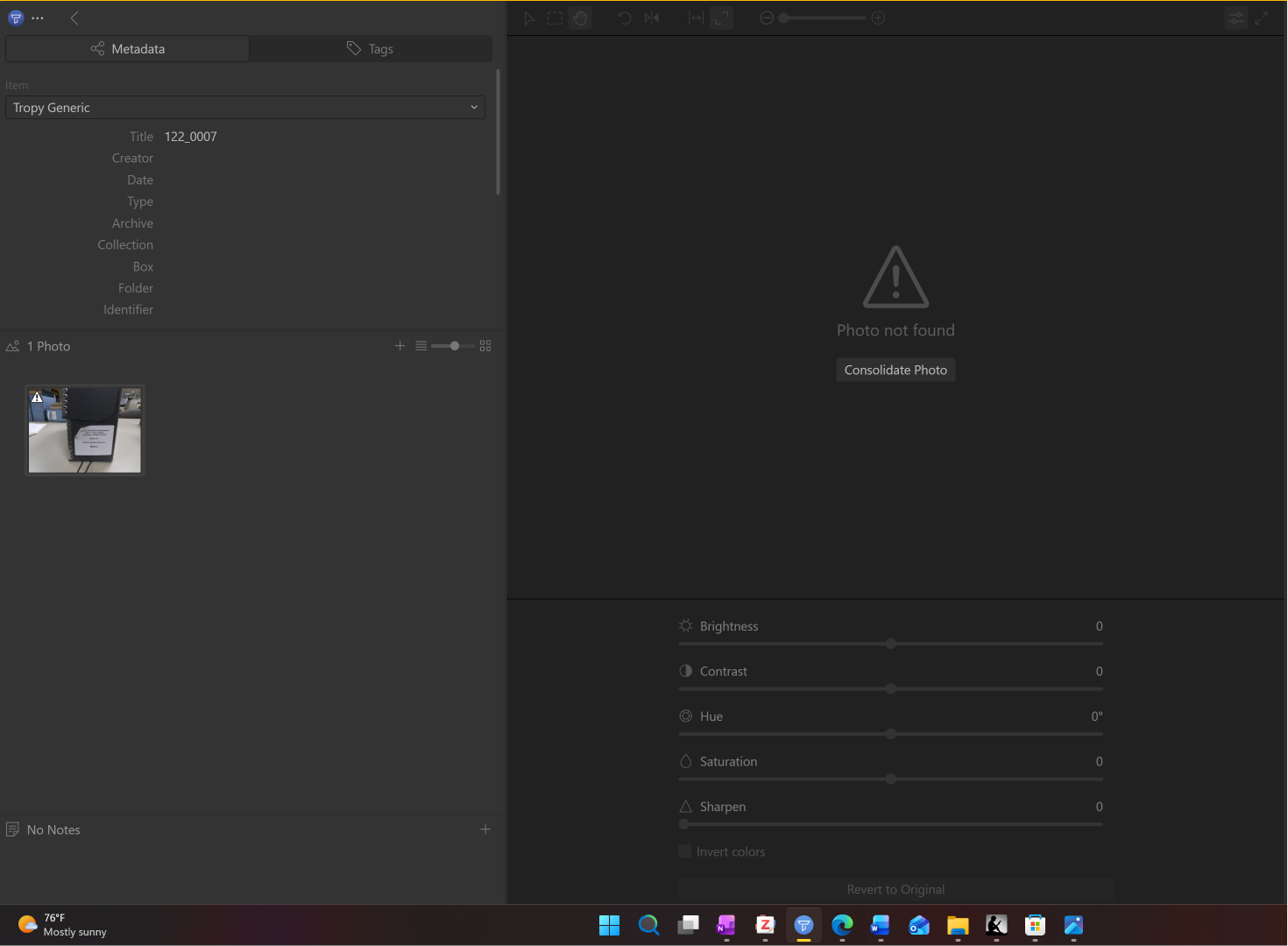
This most recent trip, I was able to load the .pdf and .png files from the microfilm perfectly fine. However, the .jpegs from the camera are pulling up with an error, “Photo Not Found.” I click consolidate photo, then select the correct photo, and nothing happens. I have played around with uploads from copies of the folder in different locations, including the hard drive and cloud., as well as cutting the file upload into portions. They also pull up without issue in Windows Photos. Any ideas on how to fix this error? Or is this more of a wait for an update type of thing?
It’s true, in a standard project the files are copied into the asset folder on import and the Tropy will always use relative paths. This means that files can’t really get lost unless you actively remove the copies from the asset folder. One way this could still happen is with some cloud services: if you use something like this, it could be that there is some ‘download on demand’ functionality in place to preserve local disk space. It’s possible that Tropy’s file access does not trigger the automatic download in the background.
In any case, if you notice this issue again the best way to analyze the problem is to check if the corresponding file is present in the asset folder or not. In a standard project you should never consolidate a file, because the file paths should never change.
Hello Ink,
Yes, that’s exactly why I am confused on the error; the consolidate action error was an issue prior to the massive update last year. The copy process into Tropy should be working without issue. I thought the same thing.
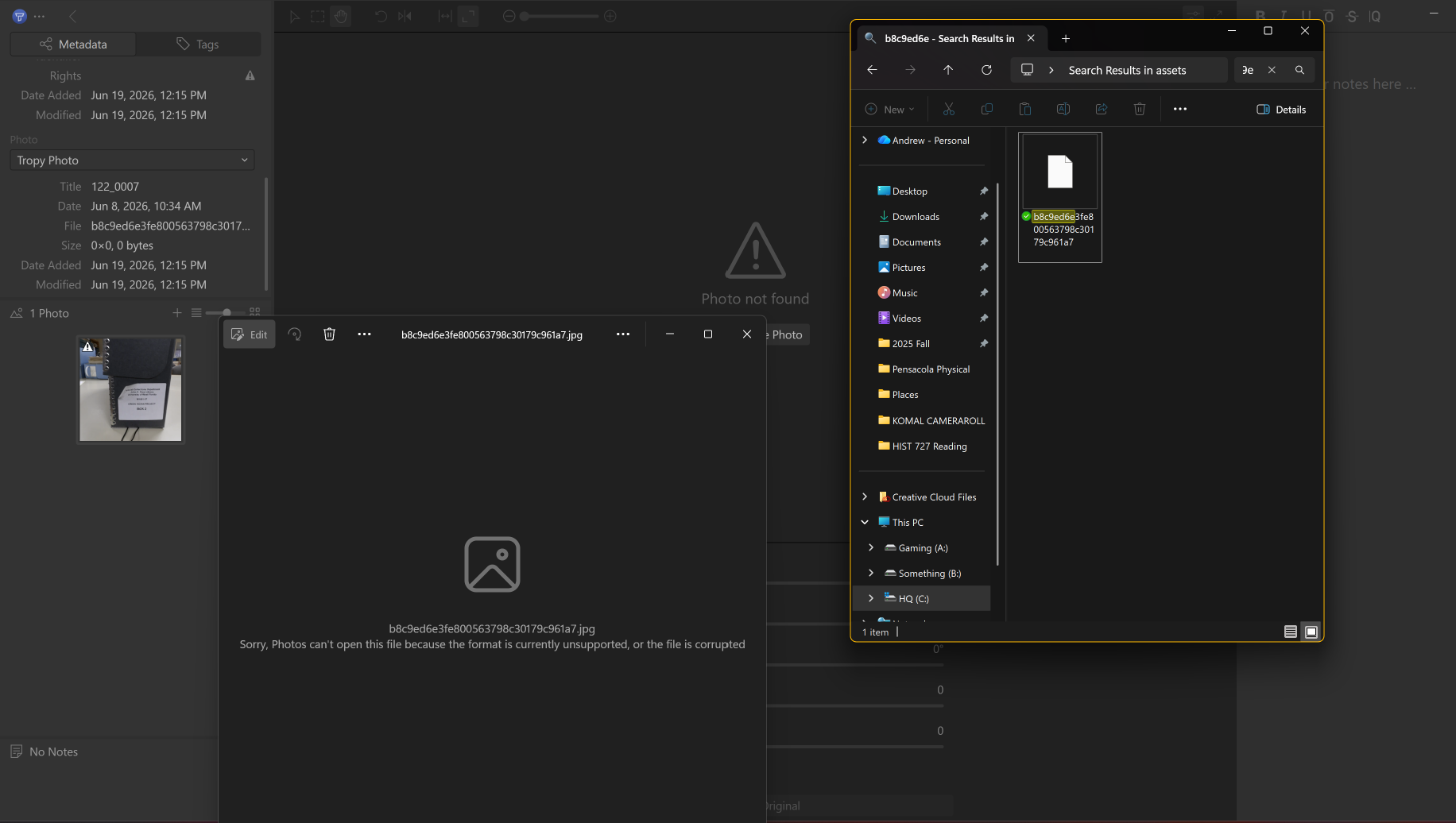
I made sure that my work/asset folder is “always on this device” in the One Drive. I also tried to circumnavigate that issue entirely by uploading my entire work folder onto a SSD and attempting to import from there. The same issue arises. Below I will provide screenshots in the hopes that it can aid. The asset folder is intact and the images load uncorrupted. They are simple .jpegs, too.
.
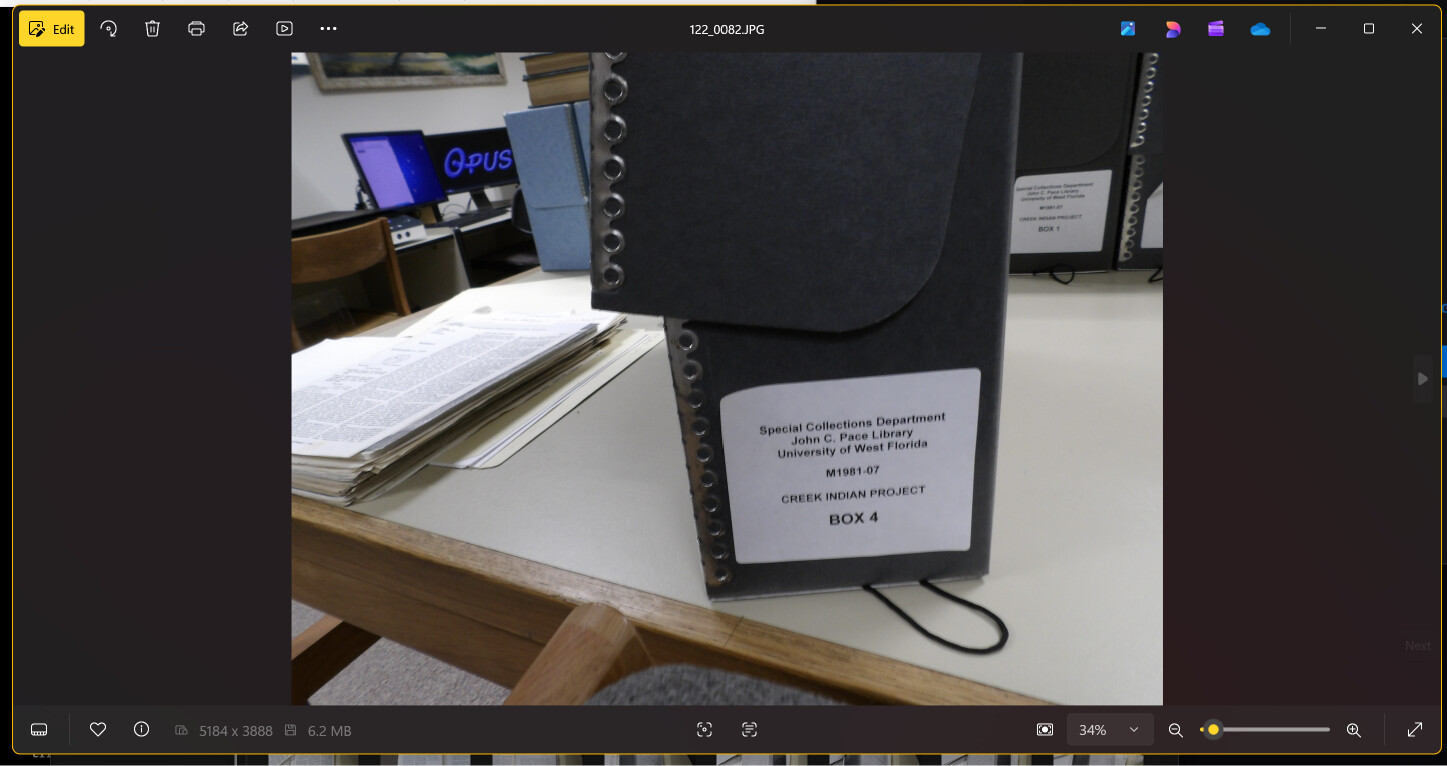
The image in the second screenshot is the original image, right? When Tropy copies the file into the asset folder it also renames the file (using the file’s checksum as a name so that duplicates are saved only once). In your screenshot the file has a different name so either it’s the original file name (not the one in the asset folder) or you already consolidated the photo manually (selecting the original file outside of the asset folder). To figure out which is the case can you right-click on the photo in Tropy and select show original file?
tropy://project/current/items/28248/28249
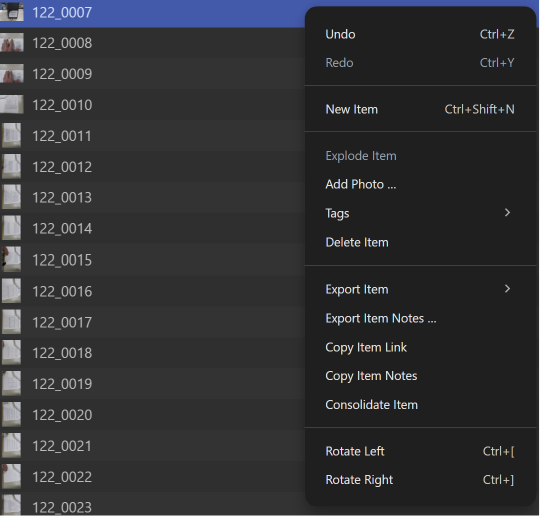
This is item link, if that’s what you’re asking. There is no show original file option. Here is a video of the problem in action. Something (B) is a SSD Drive, while Personal is my One Drive.
The forums will not allow me to show a video, but I posted onto YouTube as a private video. Tropy Issue
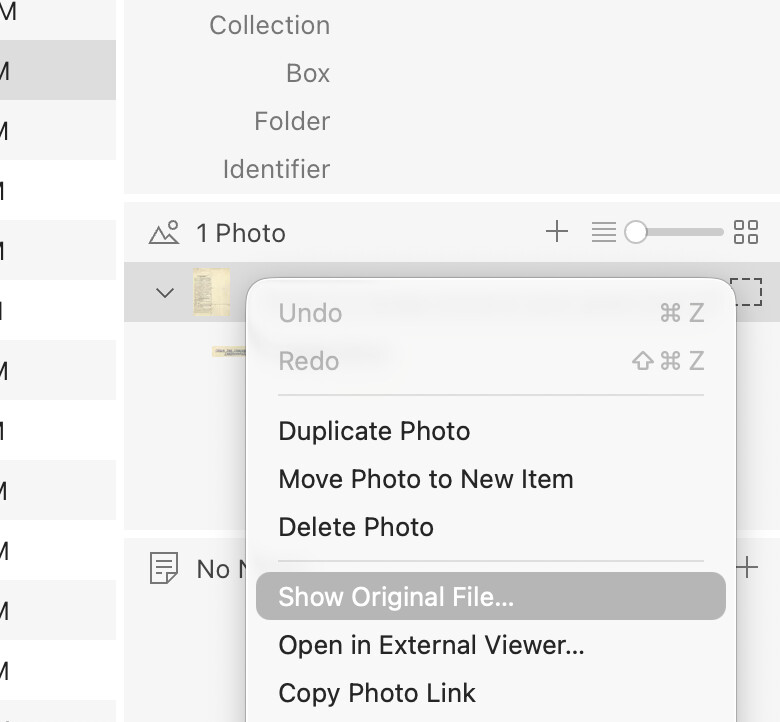
I meant ‘Show Original File’ from the photo context-menu:
It’s important that you select the photo that is missing (the last one in the video) and select ‘Show Original File’ after selecting it in the photo panel. This will open Windows Explorer at the location where Tropy thinks the file is. In a standard project this should open the project’s asset folder and select the corresponding file (with the file name being a checksum), something like 51e71f1942d8e0f33886a51e63ce0d10.tif.
Can you test if this is works in your case?
Ah! Okay, I did that, and when I get to the file, it shows this. It is strange, though. The original is a JPEG and uncorrupted.
Good, that just means we’re making progress!
Does this issue happen with that particular photo reliably? That is, if you import it again, just that one photo, it never works? Or does it work sometimes and fail at other times?
If it fails reliably, could you send me both the original file and the one above from the asset folder in a zip file? Additionally, it would help if you could:
- Stop Tropy.
- Start Tropy.
- Open your project.
- Import just the one file.
- And then select
Help → Show log file and copy the tropy.log to the zip file as well.
Hey Inukshuk,
Yes, it does happen reliably to this one batch of photos only. It works only for the first 1-2 images, and the other 300 give me the consolidation error.
I believe I have the files you asked for in this folder here.
INUKSHUK AID 1.zip (6.4 MB)
Thanks!
The photo file itself looks fine; it shouldn’t cause any issues. The load error in the log file is inconclusive as well. What is of note is that the file in the log and the file in your screenshot above have different checksums, both of which do not match the checksum of the photo itself. This would suggest that Tropy was unable to open the file properly on import; however, the fact that the thumbnail looks good proves that the file did open fine the first time. I suspect that this could be because you tried consolidating the file later (in the video the checksum isn’t visible unfortunately). In any case, the most likely reason for the issue is probably related to OneDrive. Could you try to confirm this by:
- Create a new project in the same folder as your current one (i.e., in OneDrive)
- Import just the one photo
122_0007.JPG from it’s current location
- Note whether or not this works (presumably it should fail)
- Now close the new project and move it somewhere else on the C drive, outside of OneDrive
- Open the project again at its new location
- Import the photo again and note whether or not it works this time; you should have the photo twice in the project at this point (if not, check the ‘skip duplicates’ option in the preferences and try again).
Hey Inukshuk,
I wanted to update you and thank you for the time spent working with me on this. Sadly, that produced the same error. BUT! I was able to successfully do so through a workaround method. I used Adobe Acrobat to convert batches of a hundred PNG/JPEG images at a time into a merged PDF file. Then I uploaded those into Tropy in batches, and merged them together in order. Tedious, but I’m able to start working on the second half of my dataset.
I gathered PNGs from two separate places on my trip; one from a PC and another from a (bridge) camera. I am not sure why it is, but only the camera roll images gave the error in Tropy despite downloading “properly.” I love Tropy, thus why I endeavored. So, I will blame Minolta.
Do you still have the test project, i.e., the new project with only the one file imported twice? If so, could you zip the entire project folder and share it with us?
The file itself loaded fine for me and the fact that the thumbnail was created on your case suggests that Tropy was able to read the file just fine on import. For this reason I doubt that there is any problem with the file itself, but I may be missing something.
Good to know that the workaround via PDF seems to work! Though, image-collection PDFs are very inefficient in the current stable release, because Tropy generates a cached image for each page in the image cache. I suspect this is why the workaround works in your case: the image cache, typically, is outside of the OneDrive folder. However, it also means that the project is essentially consuming more disk space than necessary. We have added and option for image optimizations that will improve using these kind of PDFs tremendously; if you do keep the PDF workaround you’ll be able to optimize the project in the next release.